
Before you record, the app checks along with you: are you fully in view, is the ball in the right spot, and is the phone straight? This isn't a judgement of your swing. It makes sure this recording can be compared with your previous one, and with your best shot.
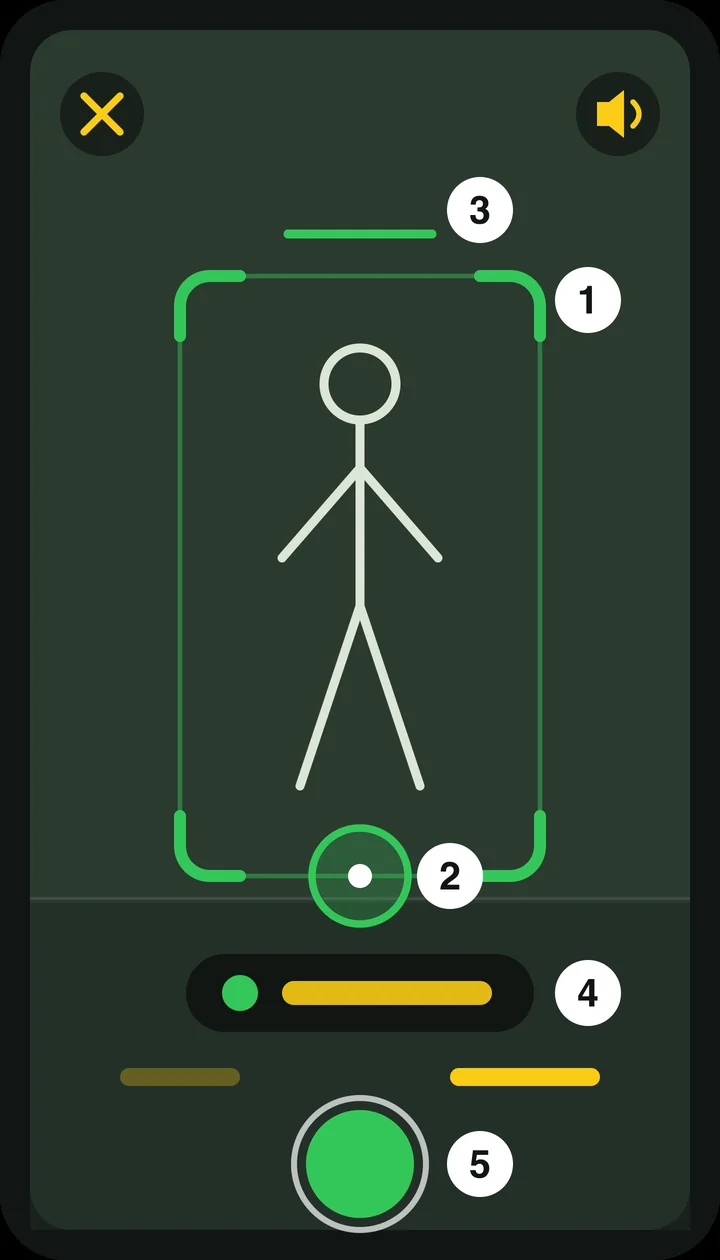
What you see
- The frame — the rectangle your body needs to fit in. Its colour shows how things stand: yellow as long as the app can't see anyone, red when you're partly outside it, green when it's right.
- The ball ring — the ring at the bottom of the frame. Put the ball inside it. If the app sees the ball resting steadily in the ring, the ring fills up and ⛳ Ball found appears.
- The level — the short line above the frame. It tilts along with your phone; when the phone is straight, it lines up with the fixed line and turns green.
- The guidance — the text at the bottom: No golfer, Move left, Move closer, Fully in frame, Hold it level, Ball in the circle … until it says Perfect.
- The record button — green as soon as you're inside the frame and the phone is straight. As long as that isn't the case, it's orange: use it to record anyway.
How to do it
- Stand the phone upright, straight across from you. Something sturdy under the phone keeps it still and level.
- Take your position and watch the guidance. Move left, right, closer or back until the frame is green. You'll feel a short tap when it's right.
- Put the ball in the ring.
- Tap the green button. You go to the recording screen.
A level that won't turn green is something to fix on the phone, not on yourself: a few degrees of tilt looks like a difference in your swing in the comparison.
Recording angle
The app records from the front (FACE ON). Side-on (DOWN THE LINE) is already on the screen, but can't be selected yet: the analysis still only works with a view from the front.
Good to know
- With the button at the top right, you overlay the skeleton the app sees on the image. Handy for understanding what the app does and doesn't see; you don't need it to record.
- A ball outside the ring doesn't stop you from recording. It only makes the comparison less certain.
- The app estimates the distance to the camera from your height in your golfer profile. If that's right, the distance is right.
- Use the cross at the top left to go back to the club choice.
Before you record, the app checks along with you: are you fully in view, is the ball in the right spot, and is the phone straight? This isn't a judgement of your swing. It makes sure this recording can be compared with your previous one, and with your best shot.
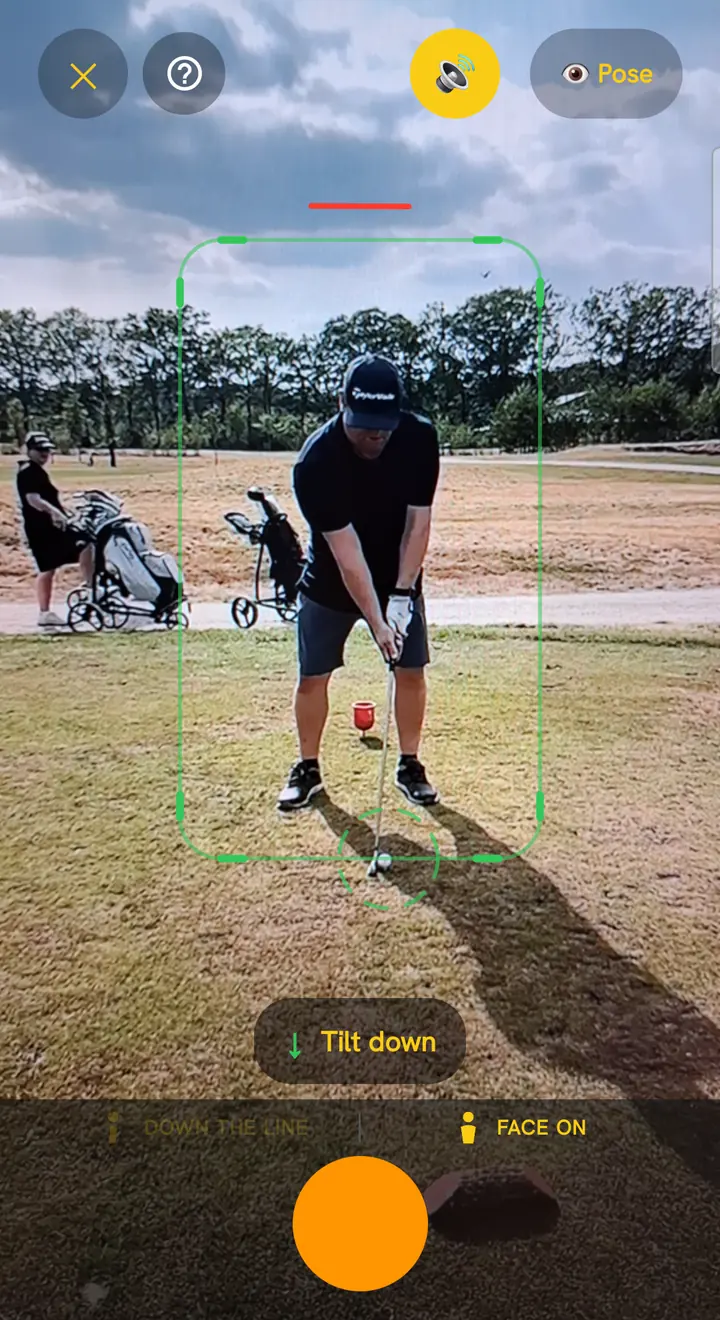
What you see
- The frame — the rectangle your body needs to fit in. Its colour shows how things stand: yellow as long as the app can't see anyone, red when you're partly outside it, green when it's right.
- The ball ring — the ring at the bottom of the frame. Put the ball inside it. If the app sees the ball resting steadily in the ring, the ring fills up and ⛳ Ball found appears.
- The level — the short line above the frame. It tilts along with your phone; when the phone is straight, it lines up with the fixed line and turns green.
- The guidance — the text at the bottom: No golfer, Move left, Move closer, Fully in frame, Hold it level, Ball in the circle … until it says Perfect.
- The record button — green as soon as you're inside the frame and the phone is straight. As long as that isn't the case, it's orange: use it to record anyway.
How to do it
- Stand the phone upright, straight across from you. Something sturdy under the phone keeps it still and level.
- Take your position and watch the guidance. Move left, right, closer or back until the frame is green. You'll feel a short tap when it's right.
- Put the ball in the ring.
- Tap the green button. You go to the recording screen.
A level that won't turn green is something to fix on the phone, not on yourself: a few degrees of tilt looks like a difference in your swing in the comparison.
Recording angle
The app records from the front (FACE ON). Side-on (DOWN THE LINE) is already on the screen, but can't be selected yet: the analysis still only works with a view from the front.
Good to know
- With the button at the top right, you overlay the skeleton the app sees on the image. Handy for understanding what the app does and doesn't see; you don't need it to record.
- A ball outside the ring doesn't stop you from recording. It only makes the comparison less certain.
- The app estimates the distance to the camera from your height in your golfer profile. If that's right, the distance is right.
- Use the cross at the top left to go back to the club choice.