
The recording plays once. This is where you decide whether it's worth keeping.
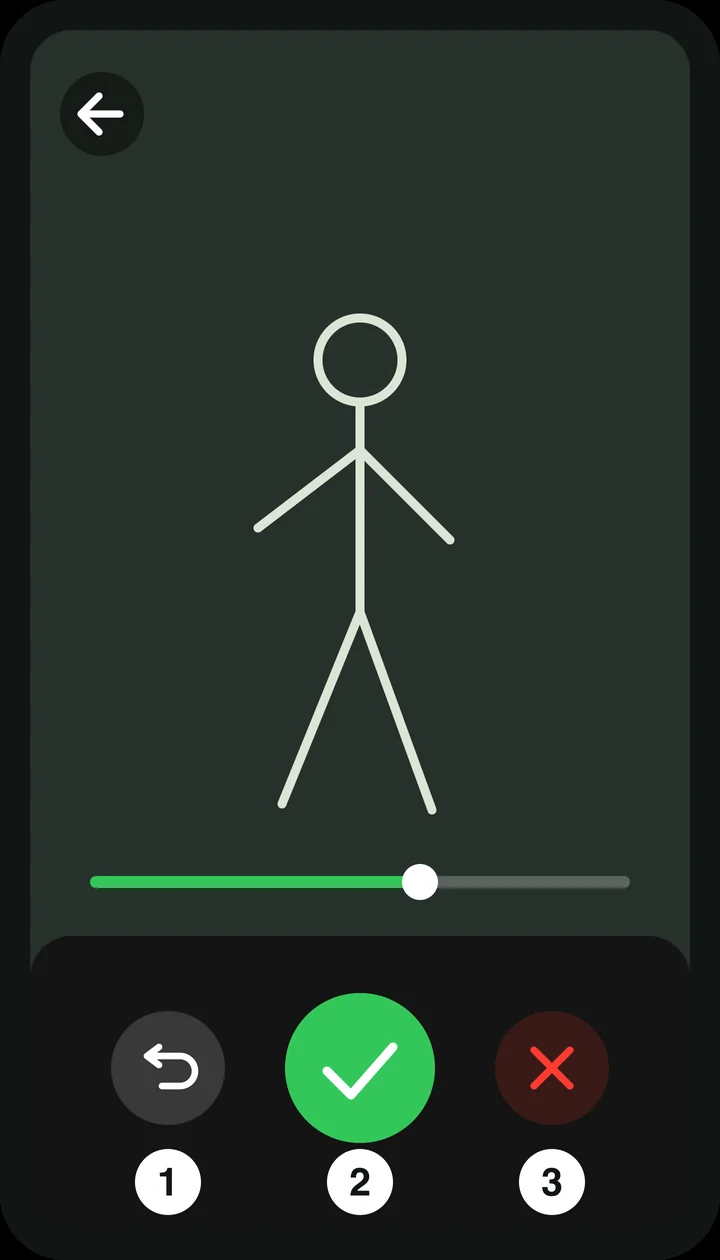
Watching it back
- Tap the image to pause or resume.
- Drag the bar below the image to jump to another moment.
- At the end, a play icon appears; tap it to watch again.
The three buttons
- Retake — discards this recording and takes you back to the recording screen. You're ready there with the same club; start yourself with the green button.
- Confirm — the big green check mark. The recording is saved and uploaded.
- Cancel — discards the recording and closes recording altogether.
The arrow at the top left does the same as Retake.
After you confirm
Your recording goes to the server and processing begins: the swing is detected, split into steps and compared with your best shot. In your list you see the swing with the status of that processing.
- Wait or carry on. From Pro you can carry on straight away while the upload runs in the background (Settings → Upload in the background). Otherwise you watch the upload run and then go to your swings.
- Send only the swing. If Send only the swing is on, the phone trims the recording around the ball strike before sending it. If there are several swings in one recording, they become several separate swings in your list. If the phone doesn't find a clear ball strike, the whole recording is sent.
- Without a connection, the recording stays on your phone and is sent as soon as you have a connection again. The screen tells you so before you confirm. Processing only begins after that.
After you confirm, the app may still ask you how the shot went, and, if your archive is full, what to do with the oldest video.
Automatic confirmation
From Basic you can skip the check: Auto-confirm after recording in Settings. The app then counts down on this screen and confirms by itself; with the cross next to the counter you stop that. It's off by default.
Good to know
A recording you don't confirm isn't saved.
The recording plays once. This is where you decide whether it's worth keeping.
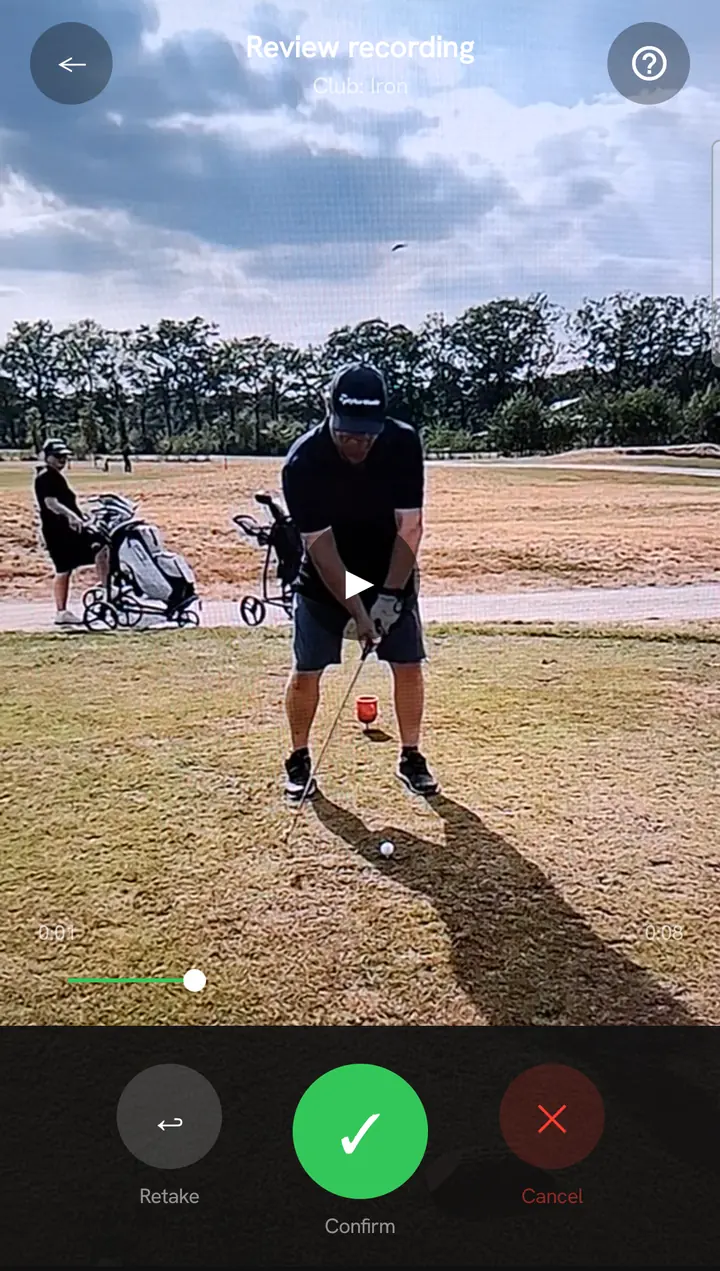
Watching it back
- Tap the image to pause or resume.
- Drag the bar below the image to jump to another moment.
- At the end, a play icon appears; tap it to watch again.
The three buttons
- Retake — discards this recording and takes you back to the recording screen. You're ready there with the same club; start yourself with the green button.
- Confirm — the big green check mark. The recording is saved and uploaded.
- Cancel — discards the recording and closes recording altogether.
The arrow at the top left does the same as Retake.
After you confirm
Your recording goes to the server and processing begins: the swing is detected, split into steps and compared with your best shot. In your list you see the swing with the status of that processing.
- Wait or carry on. From Pro you can carry on straight away while the upload runs in the background (Settings → Upload in the background). Otherwise you watch the upload run and then go to your swings.
- Send only the swing. If Send only the swing is on, the phone trims the recording around the ball strike before sending it. If there are several swings in one recording, they become several separate swings in your list. If the phone doesn't find a clear ball strike, the whole recording is sent.
- Without a connection, the recording stays on your phone and is sent as soon as you have a connection again. The screen tells you so before you confirm. Processing only begins after that.
After you confirm, the app may still ask you how the shot went, and, if your archive is full, what to do with the oldest video.
Automatic confirmation
From Basic you can skip the check: Auto-confirm after recording in Settings. The app then counts down on this screen and confirms by itself; with the cross next to the counter you stop that. It's off by default.
Good to know
A recording you don't confirm isn't saved.